
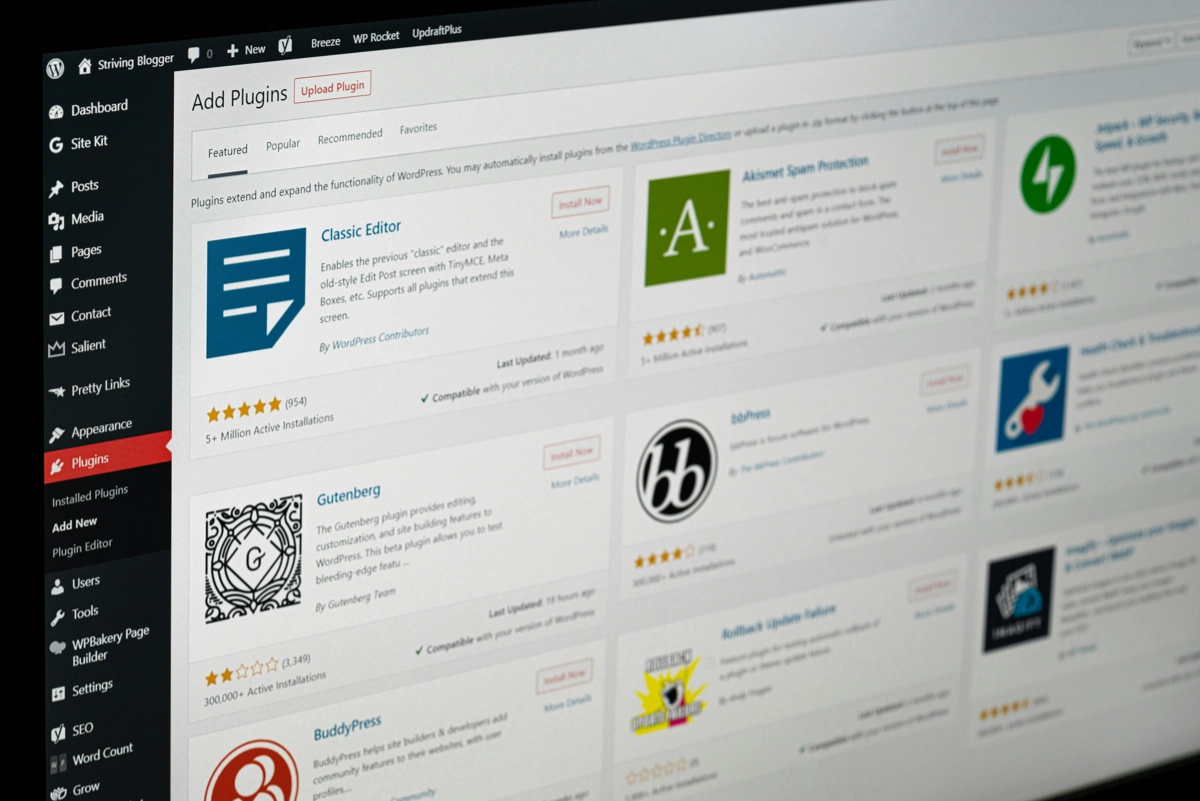
wordpress maintenance
What Happens If You Do Not Update WordPress Plugins?
WordPress plugins are easy to forget about. The site still loads, the pages look fine, and the update notices sit quietly in the dashboard.
But plugin updates are not just admin. They can affect security, layouts, forms, checkout steps, booking calendars and the parts of your website that help people enquire, buy or book.
This guide explains what can happen when WordPress plugins are left out of date, why updates need a bit of care, and what to do if your site has not been touched for months.
Already worried about an old WordPress site? Get a website health check
Updated plugin
Working as expected
Old form plugin
Needs testing
Security patch missed
Higher risk
Update carefully. Then test the journey.
Who this helps
Small business owners with a WordPress site that has been left alone for a while.
Search intent
Problem-aware: you know updates matter, but want to understand the real risks.
Best next step
Check the site, back it up, update carefully and test key conversion paths.
Why WordPress plugins need updates
Plugins add features to your WordPress website. A contact form, SEO tool, page builder, booking calendar, payment gateway, spam filter or image gallery may all come from plugins.
Those plugins are built by different developers. Over time, they need changes so they keep working with newer versions of WordPress, PHP, themes, browsers and other plugins.
Updates can include:
- Security fixes for known weaknesses.
- Bug fixes where a feature is not behaving properly.
- Compatibility changes for WordPress, WooCommerce, PHP or other plugins.
- Performance improvements that make the site lighter or more stable.
- Small feature changes that keep the plugin useful and supported.
The important point is simple: an update notice is not always urgent, but it is rarely meaningless. It is a sign that part of your website has changed and needs attention.
The safe update route
Back up
Save a fresh copy before touching updates.
Update
Apply plugin updates in a controlled way.
Test
Check forms, checkout, bookings and key pages.
Monitor
Look for errors, missing emails or odd behaviour.
Security risks
Old plugins can make a website easier to attack, especially when a known security issue has already been fixed in a newer version.
That does not mean every old plugin will cause a disaster. It does mean the risk goes up the longer updates are ignored, particularly if the plugin handles logins, forms, file uploads, payments, ecommerce, memberships or admin access.
Common security problems on neglected small business sites include:
- Plugins that have not been updated for years and are no longer supported.
- Old form plugins that allow spam or suspicious submissions through.
- Unused plugins left installed even though the business no longer needs them.
- Security notices that were emailed to an old inbox nobody checks.
- Backups stored only on the same hosting account as the website.
The goal is not to panic. It is to reduce avoidable risk. Updating plugins, removing unused ones and keeping reliable backups gives you a much better recovery position if something goes wrong.
Where plugin risk usually sits
Lower risk
Simple display plugins, galleries and minor design extras.
Medium risk
Forms, pop-ups, page builders, SEO tools and tracking plugins.
Higher risk
Checkout, bookings, memberships, payments, security and login tools.
Compatibility problems
WordPress websites are made of connected parts. WordPress core, your theme, plugins, hosting software and third-party tools all need to work together.
When plugins are not updated for a long time, the gap between old code and the current website environment gets wider. That is when small update jobs can become more awkward.
You might see:
- Page layouts shifting after a delayed page builder update.
- Warning messages caused by newer PHP versions on the hosting account.
- A plugin update asking for a newer version of WordPress or WooCommerce.
- Features disappearing because an old add-on no longer works with the main plugin.
- Admin screens loading slowly or showing errors after several updates are stacked up.
This is one reason regular, smaller updates are usually easier than leaving everything for six months and hoping the whole lot behaves.
Broken forms, checkouts and booking features
For a business website, the biggest practical problem is often not a visible error. It is a quiet failure in the route from visitor to enquiry.
A contact form might stop sending. A booking calendar might fail to show available times. A checkout field might not validate properly. A thank-you page might stop firing tracking, which means enquiries or sales are harder to measure.
These are the kinds of issues we often see on small business sites after neglected or rushed updates:
Visitor lands
Service page, product page or booking page loads.
They take action
They fill in a form, add to basket or choose a slot.
Plugin issue
Email, payment, calendar or tracking fails quietly.
Business impact
Lost enquiries, missed bookings or unreliable reporting.
Ecommerce and booking websites need extra care because the features are closer to revenue. If WooCommerce, a payment gateway, a booking plugin or a subscription tool breaks, the site may still look normal while customers cannot complete the job they came to do.
Why updates should be tested
It is tempting to open the dashboard, click “update all” and feel productive. Sometimes that works. Sometimes it creates a mess.
Plugin updates should be tested because a successful update message only tells you the update installed. It does not prove the important parts of the website still work.
After updates, test the parts that help the business make money or receive enquiries:
- Home page and main service pages.
- Contact forms, quote forms and newsletter forms.
- Checkout, basket, payment gateways and order emails.
- Booking calendars, confirmation emails and payment or deposit steps.
- Login, registration and password reset pages.
- Thank-you pages, conversion tracking and important redirects.
Short safe-update checklist
- Back up first. Make sure you have a recent backup before updating plugins.
- Update carefully. Avoid rushing through a long list if the site has been neglected.
- Test key pages. Check the pages people use to enquire, book or buy.
- Test forms. Send a real test enquiry and confirm it arrives in the right inbox.
- Watch for errors. Look for layout problems, warning messages, failed emails or checkout issues.
If you want a wider routine, use our WordPress maintenance checklist. For recovery planning, read the WordPress backup guide.
What to do if your site has not been updated for months
If your WordPress site has not been updated for months, do not start by clicking every update button at once. Slow down and find out what you are dealing with.
Start with this order:
Check backups
Confirm a recent backup exists. If not, create one before changing anything.
Review plugins
Note which plugins are outdated, unused, abandoned or linked to key features.
Look at risk
Treat ecommerce, booking, security, form and login plugins with extra care.
Update in stages
Apply updates, then test before moving on to the next group.
Record issues
Keep notes on broken layouts, form problems, warnings or plugins that need replacing.
Plan ongoing care
Set a monthly routine so the site does not drift back into the same state.
If the site is important to enquiries, sales or bookings, it may be worth getting a health check before updating. A careful review can spot abandoned plugins, missing backups, broken forms and higher-risk update areas before they become urgent repairs.
For regular help, our ongoing WordPress maintenance service covers updates, backups and practical checks for small business websites.
Frequently asked questions
Is it safe to update all WordPress plugins at once?
It can be safe on a simple site with a fresh backup, but it is not always the best approach. If your site has not been updated for a long time, or if it uses ecommerce, bookings, memberships, forms or a page builder, update more carefully and test important features afterwards.
Can old plugins make a website insecure?
Yes. Old plugins can increase security risk, especially if they contain known weaknesses that have been fixed in newer versions. The risk is higher when a plugin handles logins, uploads, forms, payments or admin features.
What should I do before updating plugins?
Create a fresh backup first. Then check which plugins are most important to the site, update in a controlled way, and test key pages, forms, checkout steps, booking features and tracking after the updates finish.
How often should plugins be updated?
Most small business WordPress sites should review plugin updates at least monthly. Security updates may need quicker attention. Ecommerce, booking and membership sites often need a more careful routine because one broken feature can affect sales or customer service.
Get a website health check
If your WordPress site has been left alone for a while, a health check is a sensible first step. We can review updates, backups, forms, security basics and the key pages that support enquiries or sales.
You can also request a maintenance quote for regular plugin updates, backups and checks, so the site stays in better shape month by month.
